Simplisis Label And Tag Printing for MC9090-G, MC3000 Mobile Device and Zebra QL220 Plus Printer
- Installation Files for the Interface Program
- sql Server Compact runtime Files
- SimpliMobile Setup 04/07/2014
- SimpliMobile Setup
- Simplisis Label Latest Version (When Upgrading to a New Version Please Back Up the Settings.xml and Database stock.sdf)
- SimpliStk-Symbol-V1.1.0.0.CAB Changes where made to print the price per UOM automatic
- SimpliStk-Symbol-V1.0.0.9.CAB Changes where made in settings so that you can print the label inverted
- SimpliStk-Symbol-V1.0.0.8.CAB Changed the font size of price to fit more digits
- Simplisis Label Setup V 1.0.0.7 Changed the font that we used to be compatible with the new Printer QLn220
- Simplisis Label Setup V 1.0.0.6
- Simplisis Label Setup V 1.0.0.5
- Simplisis Label Setup V 1.0.0.4 Print Only English
- Simplisis Label Setup V 1.0.0.2 Changed screen Resolution For MC3000
- Simplisis Label Setup V 1.0.0.1 New button added to allow users scan and check prices without the need of a printer.
- Simplisis Label Setup V 1.0.0.0
Installation Guide for the Interface
For windows XP it is required to install
the Microsoft ActiveSync 4.5. For Vista or windows 7
it is required to have Windows Mobile Device Center
First Install the sql server Comapact Runtime files
and then run the setup.exe for the Interface Program.
When the setup Finishes run the program from the
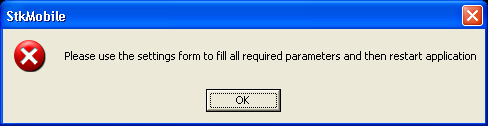
shortcut on the desktop. The following message
will pop up click ok and the Program will Continue Loading.
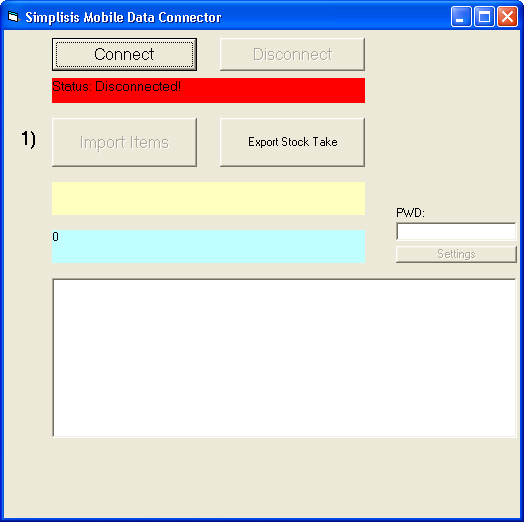
 When the Program loads you will see the following screen
in the PWD box type the password given the settings
button will be enabled
When the Program loads you will see the following screen
in the PWD box type the password given the settings
button will be enabled
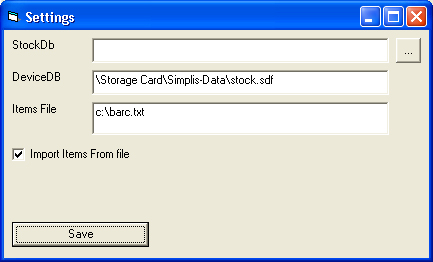
 Click on the settings button and fill the following
form like the example below
DeviceDB: is where the database will be located on the device
Items File: is the location of the file to Import.
Click on the settings button and fill the following
form like the example below
DeviceDB: is where the database will be located on the device
Items File: is the location of the file to Import.
Installation Guide for the device
Copy the CAB files downloaded in a
temporary file on the device
and run each cab file to install.
After running all cab files open the file
explorer and create a folder Simplisis-Data
on the Storage Card of the device

then goto \program files\SimpliStk-Symbol
cut the stock.sdf file and move it into
the folder \Storage Card\Simplisis-Data\ that

you created before.


Start the program Simplisi-Label on the device
a registration screen will appear copy the serial
send it to ch.proestos@simplisis.com
we will send you the Licence code back.